
Assinaturas
The Odoo Subscriptions app is designed to manage recurring revenue through subscription-based products or services. It supports automated invoicing, renewal management, and customer lifecycle tracking.
Subscriptions can be created manually or automatically through online sales, with varying options for recurring billing. The app integrates with other Odoo modules such as Invoicing, CRM, Sales, and Helpdesk to support end-to-end subscription workflows.
Customize subscription plan templates tailored to various product offerings
Understand the core management activity for subscriptions
Offer more value for current subscribers on the same sales order
Integrate subscriptions with eCommerce
Offer subscription products with an Odoo eCommerce app integration
Veja também
Set up recurrence periods
To get started with subscription products in Odoo, recurrence periods must first be configured.
Recurrence periods are the time windows in which subscriptions are active before they renew again. While a subscription is active, customers receive products or services, and may also have access to additional benefits such as support desk triage. In terms of payment, these recurrence periods designate how often the customer is charged in order to maintain the benefits of their subscription.
Para configurar os períodos de recorrência, vá a app Assinaturas -> Configuração -> Períodos de recorrência.
By default, the Subscriptions app includes a number of common recurrence periods already available, such as Monthly and Yearly.
Create new recurrence periods by clicking NEW on the Recurrence Periods dashboard, to reveal a blank form where the period Name, Duration and Unit values are specified.
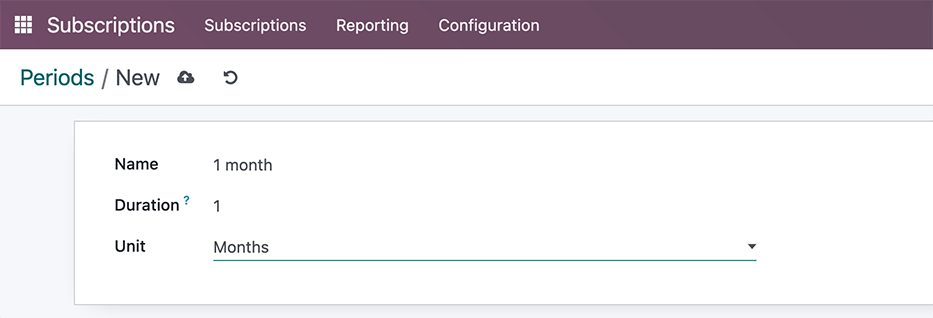
Configuração do formulário do produto
With recurrence periods set up, create a subscription product by navigating to Subscriptions app -> Subscriptions -> Products, and either clicking an existing product to turn into a subscription, or by clicking NEW to open up a blank product form.
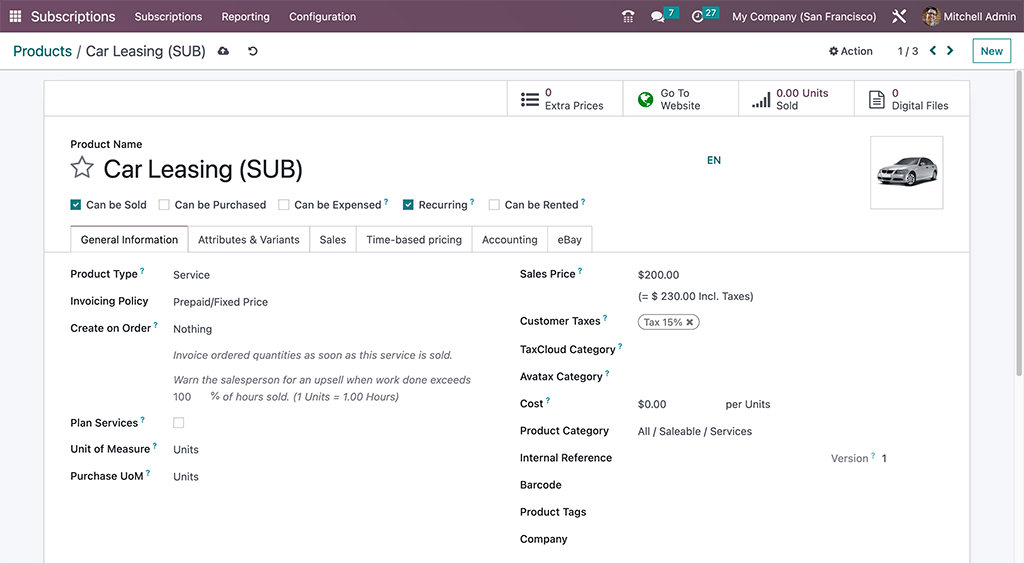
On the product form, configure the following items in the General Information tab so the subscription product will function correctly:
- Recurring: check this box to turn the product into a subscription in Odoo.
- Product type: this value is typically set to a Service, however other product types may be used (e.g., physical product box subscriptions, eLearning course, etc.).
- Invoicing policy: set this value to when the customer should be charged for their subscription.
- Unit of Measure: how the product should be counted in Odoo, for stock purposes. For most subscriptions, the UoM will be Units.
- Sales Price: enter the recurring cost of the subscription that the customer will pay per recurrence period.
Optionally set up information on the Attributes & Variants tab if the subscription contains multiple choices for customers (i.e. food delivery, tailored fashion boxes, etc.).
In the Time-based pricing tab, clarify the pricing options for the subscription. For each option available, click Add a price to add a new row.
Last, if the subscription is meant to be purchased on the eCommerce website, click the Go To Website smart button and in the product page header, click the gray slider from Unpublished to the green Published status.
Create a subscriptions quotation
Manually create a new customer subscription by navigating to either the Sales or Subscriptions app dashboards, and then clicking NEW.
On the quotation form, fill in the necessary fields such as Customer and Recurrence, as well as the Order Lines tab.
Optionally, specify a:
-
Quotation Template, if one is readily available to help populate the form fields.
-
Expiration date, to indicate when the subscription offer is no longer valid.
-
Pricelist, if one is available and appropriate to use (i.e., summer sale discount, VIP customer, etc.).
-
Payment Terms, to set a specified time window for when the subscription must be paid. This is not to be confused for when the quotation is confirmed and becomes a sales order, to where, payment may then be obtained immediately or within a certain amount of days, weeks, months, etc.
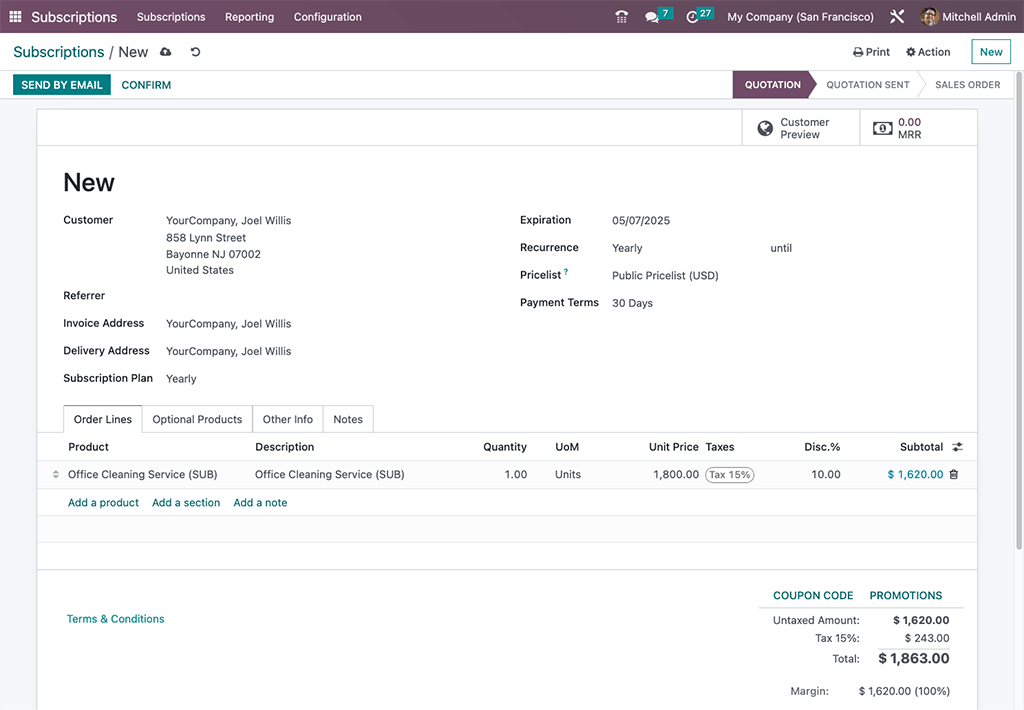
Confirmação
Send the quotation to the customer for confirmation by clicking on SEND BY EMAIL, or confirm it immediately by clicking on CONFIRM.
If a signature or a payment is required to confirm the quotation, set either (or both) of these options in the Other Info tab, next to the Online confirmation field.