
E-mails de boletim
Digest Emails are periodic snapshots sent via email to users in an organization that include high-level information about how the business is performing.
To start sending digest emails, begin by navigating to Settings app -> Statistics section, activate the Digest Emails feature, and click Save.
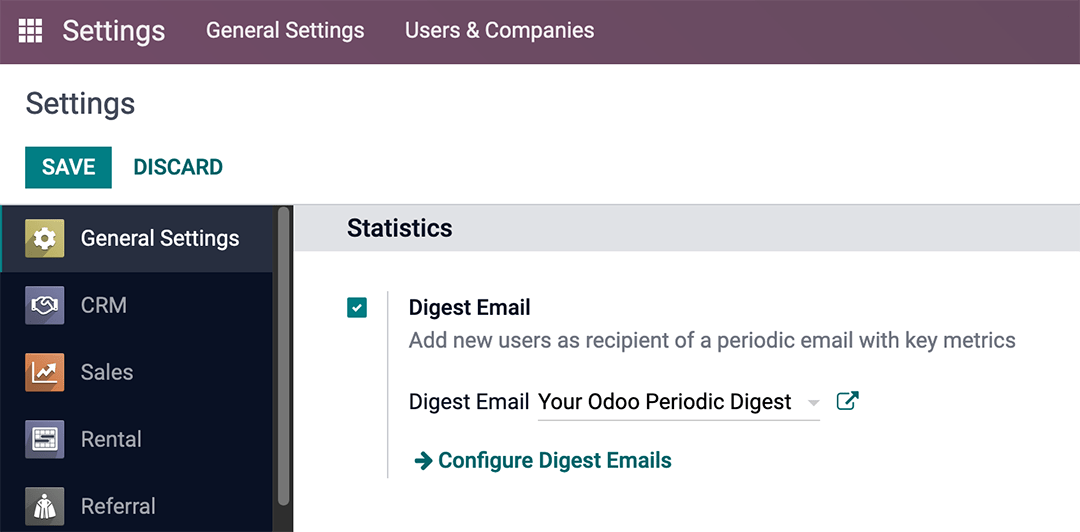
A variety of settings can be configured for digest emails, such as:
- Deciding which KPIs are shared in the digest emails
- Determining how often digest emails are sent
- Choosing who in the organization receives digest emails
- Creating custom digest email templates
- Adding additional KPIs (Studio app required)
Customize default digest email
To customize the default digest email (Your Odoo Periodic Digest), go to Settings app -> Statistics section -> Digest Email field. Then, select Your Odoo Periodic Digest, and click on the ↗️ (External link) icon, next to the drop-down menu selection.
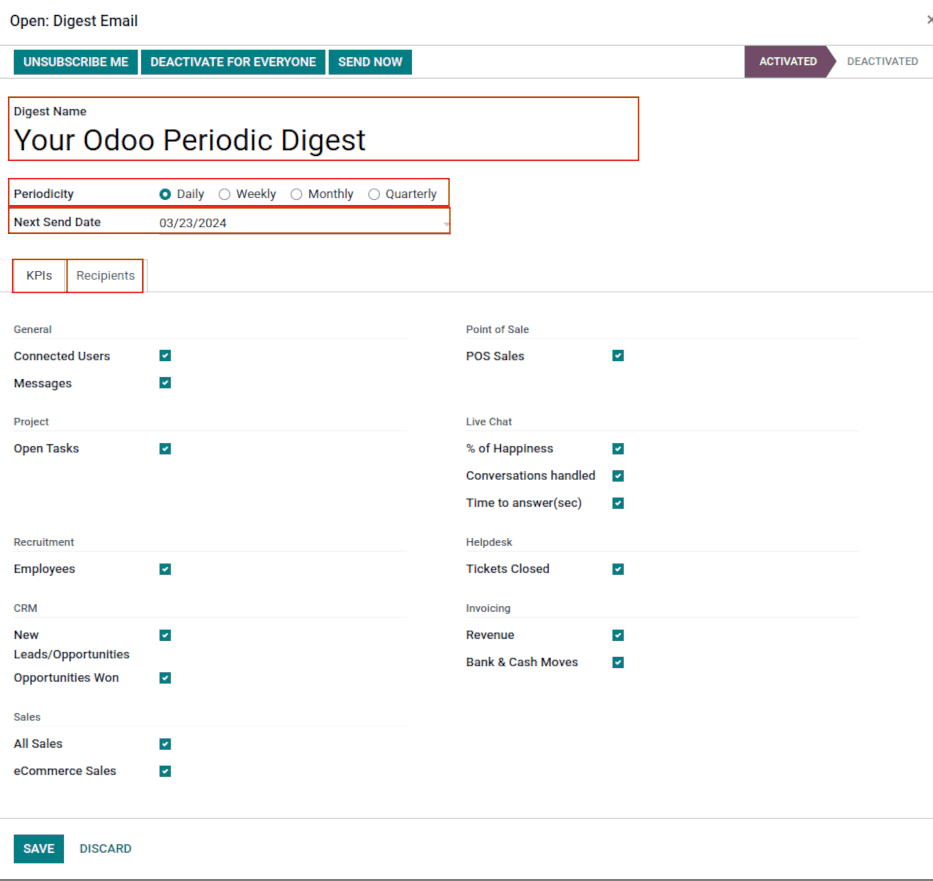
A pop-up window appears, and presents a variety of editable settings, which include:
- Digest Name: the name of the digest email.
- Periodicity: control how often digest emails are sent (Daily, Weekly, Monthly, or Quarterly).
- Next Send Date: the date on which the digest email will be sent again.
- KPIs tab: check/uncheck each calculated KPI that appears in digest emails. A ticked box indicates an active KPI in the digest email. See the section on KPIs.
- Recipients tab: add/remove users who receive the digest emails. See the section on Destinatários.
Deactivate digest email
To manually deactivate an individual digest email, first navigate to Settings app -> Statistics section, and click Configure Digest Emails. Then, select the desired digest email from the list that should be deactivated.
Next, click DEACTIVATE FOR EVERYONE to deactivate the digest email for everyone, or UNSUBSCRIBE ME to remove the logged in user from the mailing list. These buttons are located in the top menu, just above the Digest Name.
Manually send digest email
To manually send a digest email, first navigate to Settings app -> Statistics section, and click Configure Digest Emails. Then, select the desired digest email, and click SEND NOW. This button is located in the top menu, just above the Digest Name.
KPIs
Pre-configured KPIs can be added to the digest email from the KPIs tab of the digest email template form.
First, navigate to Settings app -> Statistics section, and click Configure Digest Emails.
Then, select the desired digest email, and open the KPIs tab.
To add a KPI to the digest email, tick the checkbox next to the desired KPI. After all KPIs are added (or deselected), click Save.
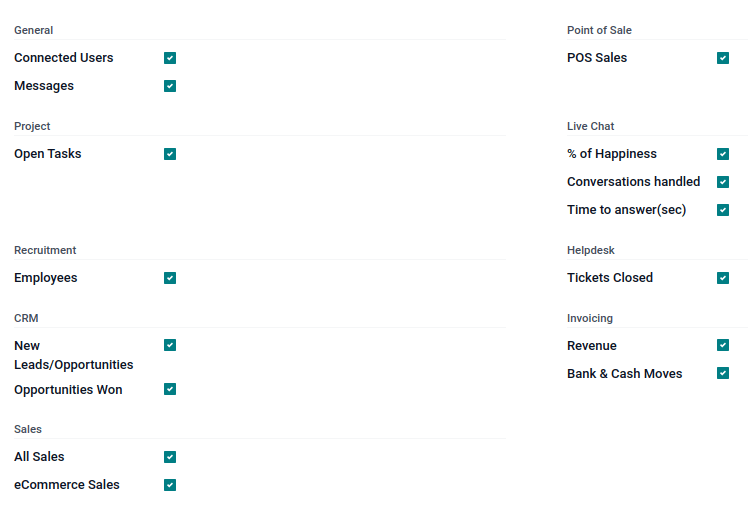
The following KPIs are available in the KPIs tab on a digest email template form out-of-box in Odoo:
-
General
-
- Connected Users
- Messages
-
Project
-
- Open Tasks
-
Recruitment
-
- Employees
-
CRM
-
- New Leads/Opportunities
- Opportunities Won
-
Sales
-
- All Sales
- eCommerce Sales
-
Point of Sale
-
- POS Sales
-
Chat ao Vivo
-
- % of Happiness
- Conversations handled
- Time to answer (sec)
-
Helpdesk
-
- Tickets Closed
-
Invoicing
-
- Revenue
- Banks and Cash Moves
Destinatários
Digest email recipients are added from the Recipients tab of the digest email template form.
To add a recipient, navigate to Settings app -> Statistics section, and click Configure Digest Emails. Then, select the desired digest email, and open the Recipients tab.
To add a recipient, click Add a line, and an Add Recipients pop-up window appears, with all available users to add as recipients.
From the pop-up window, tick the checkbox next to the Name of the user(s), and click the Select button.
To remove a user as a recipient, click the ❌ (remove) icon to the far-right of the user listed in the Recipients tab.
Click Save to implement the changes.
Create digest emails
To create a new digest email, navigate to Settings app -> Statistics section, and click Configure Digest Emails. Then, click Create to create a new digest email.
A separate page, with a blank digest email template appears, and presents a variety of editable settings, including:
- Digest Name: the name of the digest email.
- Periodicity: control how often digest emails are sent (Daily, Weekly, Monthly, or Quarterly).
- Next Send Date: the date on which the digest email will be sent again.
- KPIs tab: check/uncheck each calculated KPI that appears in digest emails. A ticked box indicates an active KPI in the digest email. See the section on KPIs.
- Recipients tab: add/remove users who receive the digest emails. See the section on Destinatários.
From there, give the digest email a Digest Name, specify Periodicity, choose the desired KPIs, and add Recipients, as needed.
After clicking Save, the new custom digest email is available as a selection in the Digest Email field, located in the Settings app -> Statistics section.
Custom KPIs with Odoo Studio
The KPIs on a digest email template form, in the KPIs tab, can be customized using Odoo Studio.
To begin, click the 🛠️ (tools) icon in the top-right of the screen. This is the link to the Odoo Studio application.
In order to create additional fields, create two fields on the digest object:
- Create a boolean field called
kpi_myfield, and display it in the KPIs tab. - Create a computed field called
kpi_myfield_valuethat computes the customized KPI. - Select the KPIs in the KPIs tab.
Veja também
Users can also click the Recipients tab, and then the vertical three-dot (kebab) menu to edit this view. Either click EDIT LIST VIEW or EDIT FORM VIEW to modify this tab.
Tabela de referência de valores computados
| RÓTULO | VALOR |
|---|---|
| Usuários conectados | kpi_res_users_connected_value |
| Mensagens enviadas | kpi_mail_message_total_value |
| Novos clientes em potencial | kpi_crm_lead_created_value |
| Oportunidades ganhas | kpi_crm_opportunities_won_value |
| Tarefas em aberto | kpi_project_task_opened_value |
| Chamados fechados | kpi_helpdesk_tickets_closed_value |
| % de satisfação | kpi_livechat_rating_value |
| Conversas tratadas | kpi_livechat_conversations_value |
| Tempo para resposta (seg) | kpi_livechat_response_value |
| Todas as Vendas | kpi_all_sale_total_value |
| Vendas do e-Commerce | kpi_website_sale_total_value |
| Receita | kpi_account_total_revenue_value |
| Movimentações bancárias e de caixa | kpi_account_bank_cash_value |
| Vendas do PDV | kpi_pos_total_value |
| Novos funcionários | kpi_hr_recruitment_new_colleagues_value |