
Merge similar leads and opportunities
Odoo automatically detects similar leads and opportunities within the CRM app. These identified duplicate records can be merged, without losing any information in the process. Doing so keep the pipeline organized, and prevents customers from being contacted by more than one salesperson.
Identify similar leads and opportunities
Similar leads and opportunities are identified by comparing the email address and phone number of the associated contact. If a similar lead/opportunity is found, a Similar Leads smart button appears at the top of the lead (or opportunity) record.
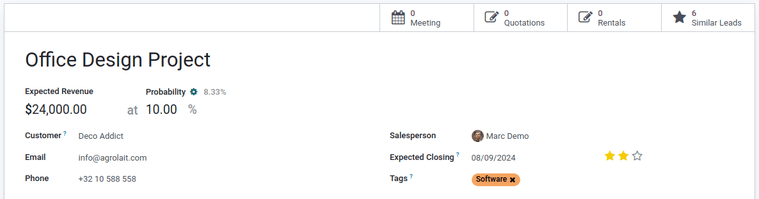
Compare similar leads and opportunities
To compare the details of similar leads/opportunities, navigate to CRM app -> Sales -> My Pipeline, or CRM app -> Leads. Open a lead or opportunity, and click the Similar Leads smart button. Doing so opens an Opportunities page, in Kanban view, that only displays similar leads/opportunities. Click on a card to view the details for the lead/opportunity, and confirm if they should be merged.
Merge similar leads and opportunities
After confirming the leads/opportunities should be merged, return to the Opportunities page, in Kanban view, using the breadcrumb link, or by clicking the Similar Leads smart button on the opportunity form. Click the (list) icon to change to list view.
Tick the checkbox on the left of the page for the leads/opportunities to be merged. Then, click the Action icon at the top of the page, to reveal a drop-down menu. From that drop-down menu, select the Merge option to merge the selected opportunities or leads.
When Merge is selected from the Action drop-down menu, a Merge pop-up modal appears. In that pop-up modal, under the Assign opportunities to section, optionally select a Salesperson and Sales Team from the appropriate drop-down menus.
Below those fields, the leads/opportunities to merge are listed, along with their related information. To add more, click Add a line, tick the checkbox next to the desired leads/opportunities from the resulting Add: Leads/Opportunities' pop-up modal, then click the :guilabel:`Select button. The additional selections now appear in the list. To merge those selected leads/opportunities, click Merge.
The pop-up window disappears, and the detail card for the merged opportunity/lead appears.
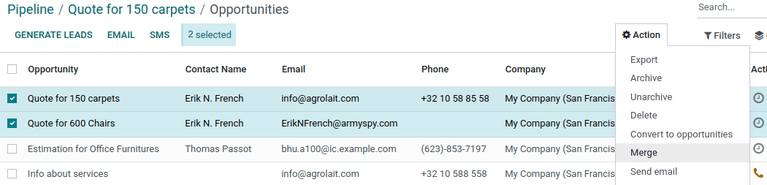
When leads/opportunities should not be merged
There may be instances where a similar lead or opportunity is identified, but should not be merged. These circumstances vary, based on the processes of the sales team and organization. Some potential scenarios are listed below.
Lost leads
If a lead/opportunity has been marked as lost, it can still be merged with an active lead or opportunity. The resulting lead/opportunity is marked active, and added to the pipeline.
Different contact within an organization
Leads/opportunities from the same organization, but with different points of contact, may not have the same needs. In this case, it is beneficial to not merge these records, though assigning the same salesperson, or sales team, can prevent duplicated work and miscommunication.
Duplicates with more than one salesperson
If more than one lead/opportunity exists in the database, there may be multiple salespeople assigned to them, who are actively working on them independently. While these leads/opportunities may need to be managed separately, it is recommended that any affected salespeople be tagged in an internal note for visibility.
Contact information is similar, but not identical
Similar leads and opportunities are identified by comparing the email addresses and phone numbers of the associated contacts. However, if the email address is similar, but not identical, they may need to remain independent.