
Usuários
Odoo defines a user as someone who has access to a database. An administrator can add as many users as the company needs and, in order to restrict the type of information each user can access, rules can be applied to each user. Users and access rights can be added and changed at any point.
Adicionar usuários individuais
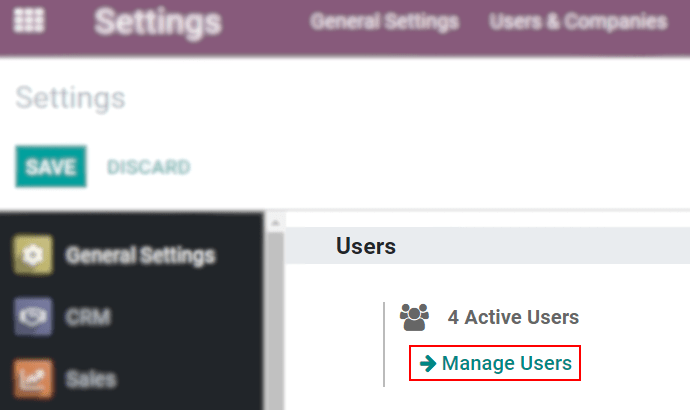
Para adicionar novos usuários, navegue até app Definições -> seção Usuários -> Gerenciar usuários e clique em Criar.
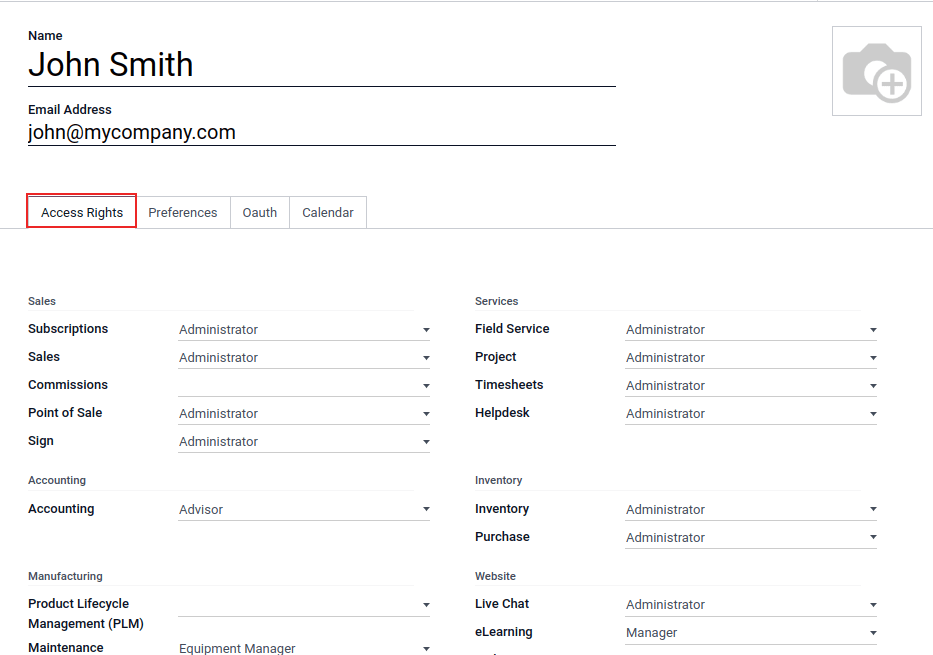
Fill in the form with all the required information. Under the Access Rights tab, choose the group within each application the user can have access to.
A lista de aplicativos mostrada é baseada nos aplicativos instalados na base de dados.
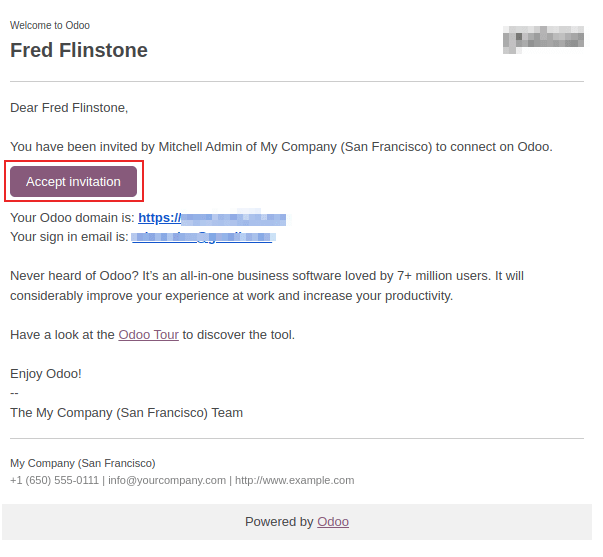
Depois de preencher todos os campos necessários na página, clique em Salvar. Um e-mail de convite é enviado automaticamente para o usuário, usando o e-mail no campo Endereço de e-mail. O usuário deve clicar no link incluído no e-mail para aceitar o convite e criar um login na base de dados.
User type
Com o modo de desenvolvedor ativado, o Tipo de usuário pode ser selecionado na guia Direitos de acesso do formulário de usuário, acessível por meio de app Definições -> Seção Usuários -> Gerenciar usuários.
There are three types of users: Internal User, Portal, and Public.
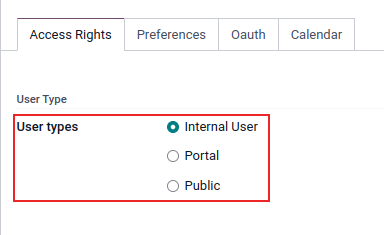
The Portal and Public user options do not allow the administrator to choose access rights. These users have specific access rights pre-set (such as, record rules and restricted menus), and usually do not belong to the usual Odoo groups.
Desativar usuários
To deactivate (i.e. archive) a user, navigate to Settings app -> Users section -> Manage Users. Then, tick the checkbox to the left of the user(s) to be deactivated.
After selecting the appropriate user to be archived, click the ⚙️ Actions icon, and select Archive from the resulting drop-down menu. Then, click OK from the Confirmation pop-up window that appears.
Error: too many users
If there are more users in an Odoo database than provisioned in the Odoo Enterprise subscription, the following message is displayed.

When the message appears, the database administrator has 30 days to act before the database expires. The countdown is updated every day.
Para resolver o problema:
- Add more users to the subscription by clicking the Upgrade your subscription link displayed in the message to validate the upsell quotation, and pay for the extra users.
- Deactivate users, and reject the upsell quotation.
Once the database has the correct number of users, the expiration message disappears automatically after a few days, when the next verification occurs.
Password management
Password management is an important part of granting users autonomous access to the database at all times. Odoo offers a few different methods to reset a user's password.
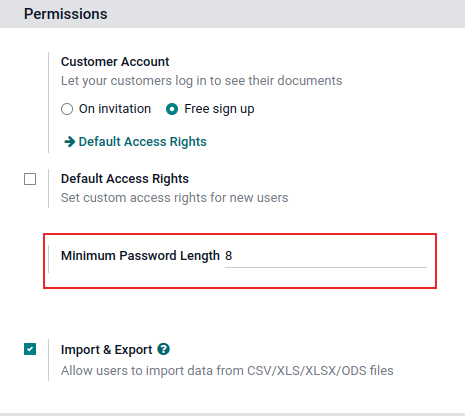
Reset password
Sometimes, users might wish to reset their personal password for added security, so they are the only ones with access to the password. Odoo offers two different reset options: one initiated by the user to reset the password, and another where the administrator triggers a reset.
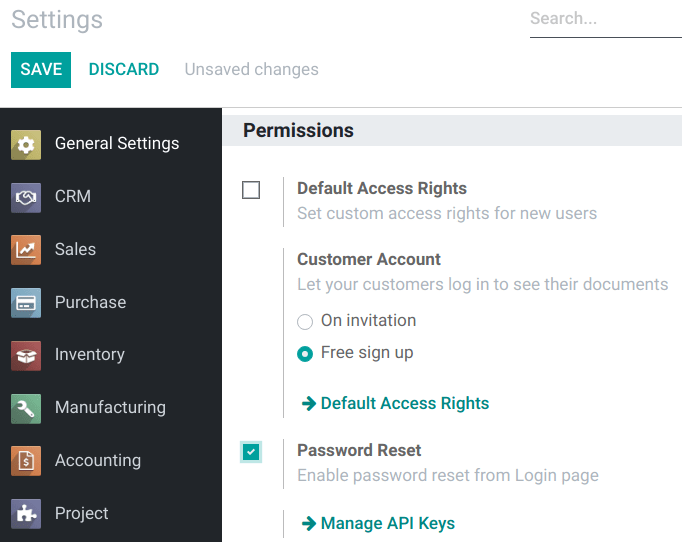
Enable password reset from login page
It is possible to enable/disable password resets directly from the login page. This action is completed by the individual user, and this setting is enabled by default.
To change this setting, go to Settings app -> Permissions section, activate Password Reset, and then click Save.
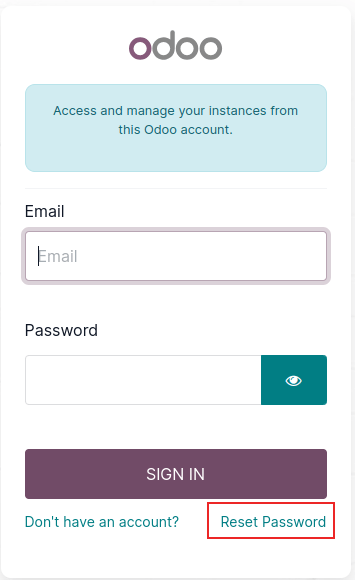
On the login page, click Reset Password to initiate the password reset process, and have a reset-token sent to the email on file.
Send reset instructions
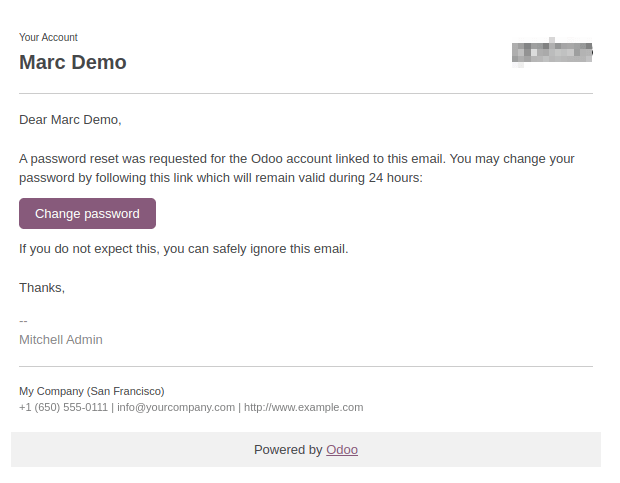
Go to Settings app -> Users & Companies -> Users, select the user from the list, and click on Send Password Reset Instructions on the user form. An email is automatically sent to them with password reset instructions.
Esse e-mail contém todas as instruções necessárias para redefinir a senha, juntamente com um link que redireciona o usuário para uma página de login do Odoo.
Change user password
Go to Settings app -> Users & Companies -> Users, and select a user to access its form. Click on the ⚙️ Actions icon, and select Change Password from, the resulting drop-down menu. Enter a new password in the New Password column of the Change Password pop-up window that appears, and confirm the change by clicking Change Password.
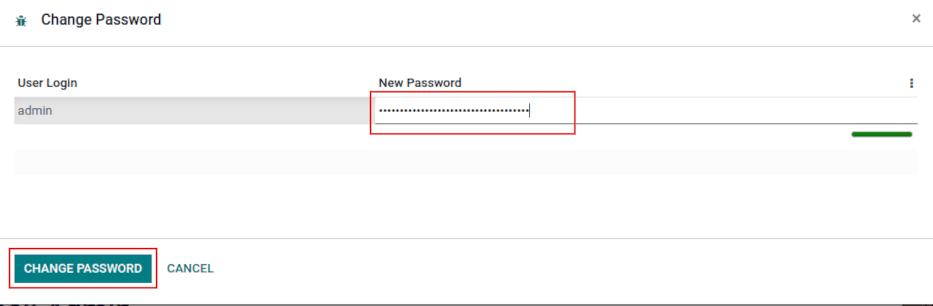
After clicking Change Password, the page is redirected to an Odoo login page where the database can be re-accessed using the new password.
Multiempresas
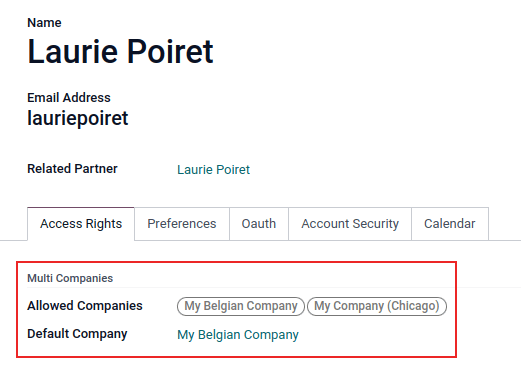
O campo Multiempresas em um formulário de usuário permite que um administrador forneça acesso a várias empresas para os usuários existentes. Para configurar um ambiente de várias empresas para um usuário, navegue até o usuário desejado acessando: app Definições -> Seção Usuários -> Gerenciar usuários. Em seguida, selecione o usuário para abrir seu formulário de usuário e configure-o com acesso a várias empresas.
Under Multi Companies in the Access Rights tab, set the fields labeled Allowed Companies and Default Company.
The Allowed Companies field can contain multiple companies. These are the companies the user can access and edit, according to the set access rights. The Default Company is the company the user defaults to, upon logging in each time. This field can contain only one company.
Veja também