
Invoicing policies
Depending on business needs, it may be advantageous to choose whether to invoice customers based on the goods and services that they order or when those goods and services are delivered to them. To allow businesses maximum flexibility to best meet their needs, Odoo offers two invoicing policies that can be enabled in the Sales app: Invoice what is ordered and Invoice what is delivered.
Configuring an invoicing policy
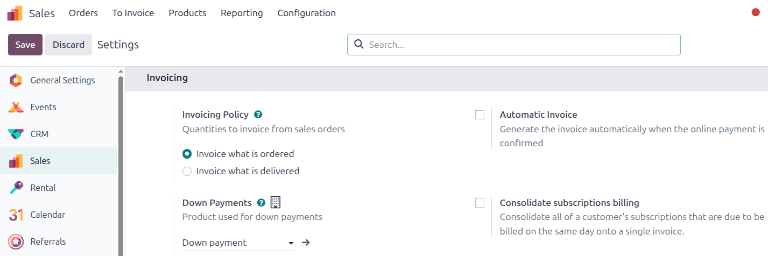
To configure an invoicing policy, go to Sales app -> Configuration -> Settings, and under the Invoicing heading, select an Invoicing Policy option: Invoice what is ordered or Invoice what is delivered.
Activating an invoicing policy option automatically applies the chosen option to all newly created products. Existing products must have their invoicing policy manually updated on their product forms.
Changing the invoicing policy for existing products
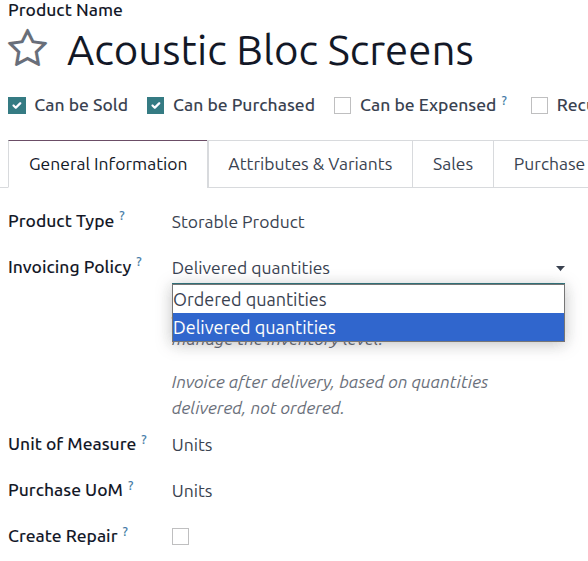
After the invoicing policy has been configured in Settings, navigate to a product's form through Sales app -> Products -> Products and choosing a product. Locate the Invoicing Policy option located under the General Information tab. Use the drop-down menu to change the policy.
Invoicing what is ordered
The Invoice what is ordered option is used as the default mode in the Sales app, which means customers are invoiced once a quotation has been sent to the customer and confirmed. The creation of a quotation in turn leads to the creation and confirmation of a sales order. An invoice can then be created as soon as the sales order is confirmed.
This invoicing policy has no impact on the basic Odoo sales flow.
Invoice ordered quantity workflow
Confirm that the product's invoicing policy is set to Ordered quantities in the product form. Create a quotation and sales order as normal. After the sales order has been confirmed, create an invoice by clicking the Create Invoice button on the sales order form. Choose the type of invoice to be sent, click Create Draft Invoice, confirm the invoice when ready, and proceed with the payment flow as normal.
Invoicing what is delivered
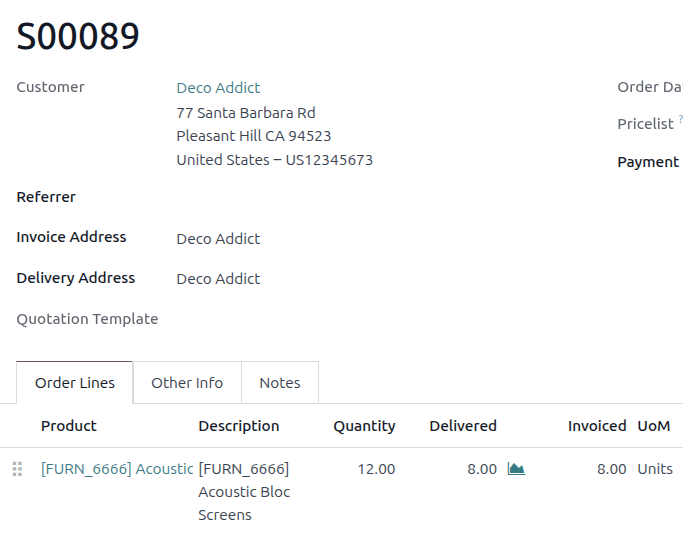
The Invoice what is delivered option invoices customers as different amounts of the ordered goods are delivered. This option is often used for businesses that sell large quantities of physical goods in each sales order, but may not always be able to completely fulfill a given order all at once. In these cases, the ordered quantity may differ slightly from the delivered quantity based on product availability. Once a quotation is confirmed, and the status changes from Quotation sent to Sales order, Odoo automatically adds both the delivered and invoiced quantities to the invoice and sales order. Both partial and complete deliveries are tracked. Backorders can be created for partial orders that will be completed at a later time.
This invoicing policy has a minor impact on the sales flow because the delivered quantity of a product needs to be manually entered on the sales order.
Invoice delivered quantity workflow
Confirm that the product's invoicing policy is set to Delivered quantities in the product form. Create a quotation and sales order as normal. After the sales order has been confirmed, the product must be delivered before an invoice can be created.
Once the product has been shipped and delivery has been confirmed, click the Delivery smart button on the sales order screen and click Validate to validate the delivery order. Once at least a partial delivery has been confirmed, return to the sales order form. The Create Invoice button is now purple to indicate that an invoice can be created and confirmed, and that it is possible to proceed with the payment flow as normal.
See also
- Create quotations
- Down payments
- Inventory
- Multi-package shipments