
Storage categories
A storage category is used with putaway rules, as an extra location attribute to automatically propose optimal storage locations for products.
Follow these steps to complete the setup:
- Enable the Storage Category feature
- Define a storage category with specific limitations
- Assign a category to storage locations
- Add the storage category as an attribute to a putaway rule
See also
Configuration
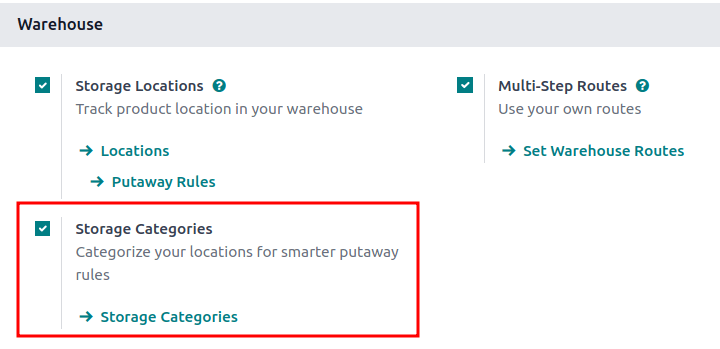
To enable storage categories, go to Inventory app -> Configuration -> Settings. Then, in the Warehouse section, ensure the Storage Locations and Multi-Step Routes features are enabled.
Next, activate the Storage Categories feature. Finally, click Save.
Define storage category
A storage category with specific limitations must be created first, before it is applied to locations, in order to decide the optimal storage location.
To create a storage category, go to Inventory app -> Configuration -> Storage Categories, and click Create.
On the storage category form, type a name for the category in the Storage Category field.
Options are available to limit capacity by weight, product, and package type.
The Allow New Product field defines when the location is considered available to store a product:
- If location is empty: a product can be added there only if the location is empty.
- If products are the same: a product can be added there only if the same product is already there.
- Allow mixed products: several different products can be stored in this location at the same time.
Capacity by weight
On a storage category form (Inventory app -> Configuration -> Storage Categories), set a maximum product weight in the Max Weight field. This limit applies to each location assigned this storage category.
Capacity by product
In the Capacity by Product tab, click Add a Line to input items, and enter their capacities in the Quantity field.
Capacity by package
For companies using packages, it becomes possible to ensure real-time storage capacity checks, based on package types (e.g., crates, bins, boxes, etc.).
Assign to location
Once the storage category is created, assign it to a location. Navigate to the location by going to Inventory app -> Configuration -> Locations, and select the desired location. Then, select the created category in the Storage Category field.
Putaway rule
With the storage category and location set up, create the putaway rule by navigating to Inventory app -> Configuration -> Putaway Rules.
Click the Create button to create the putaway rule. In the Having Category field of the new putaway rule form, select the storage category.
Use case: limit capacity by package
To limit the capacity of a storage location by a specific number of packages, create a storage category with a Capacity By Package.
Continuing the example from above, the High Frequency Pallets storage category is assigned to the PAL1 and PAL2 locations.
Then, putaway rules are set, so that any pallets received in the warehouse are directed to be stored in PAL1 and PAL2 locations.
Depending on the number of pallets on-hand at each of the storage locations, when one pallet of lemonade cans is received, the following scenarios happen:
- If
PAL1andPAL2are empty, the pallet is redirected toWH/Stock/Pallets/PAL1. - If
PAL1is full, the pallet is redirected toWH/Stock/Pallets/PAL2. - If
PAL1andPAL2are full, the pallet is redirected toWH/Stock/Pallets.