
Product variants on quotations and sales orders
Standard Odoo workflow. Also read the KMEE procedure for the Brazilian modules.
Before getting into detail about how to use product variants on quotations and sales orders, it's recommended to learn about Product variants in Odoo.
Once familiarized with the basics surrounding product variants, the following covers how product variants can be added to quotations and sales orders using the product configurator or order grid entry.
Settings
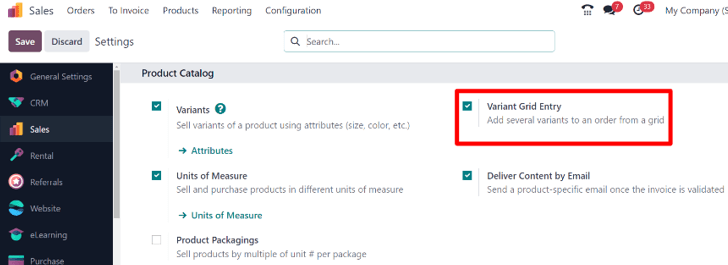
When working with product variants, Odoo uses the product configurator, by default. To add the variant grid entry option, that feature must be enabled in the Odoo Sales application. The variant grid entry option provides a pop-up window on the quotation/sales order to simplify the variant selection process.
To enable that setting, go to Sales app -> Configuration -> Settings, and scroll to the Product Catalog section. Then, check the box next to the Variant Grid Entry option, and click Save.
Product configuration
Once the Variant Grid Entry setting is enabled, both options (Product Configurator and Order Grid Entry) become available on every product form.
To configure a product form to use either a product configurator or variant grid entry, start by navigating to Sales app -> Products -> Products to view all the products in the database.
Then, select the desired product to configure, or click New, to create a new product from scratch. Once on the product form, click into the Attributes & Variants tab, where product variants can be viewed, modified, and added.
At the bottom of the Attributes & Variants tab, there is a Sales Variant Selection section with two options: Product Configurator and Order Grid Entry.
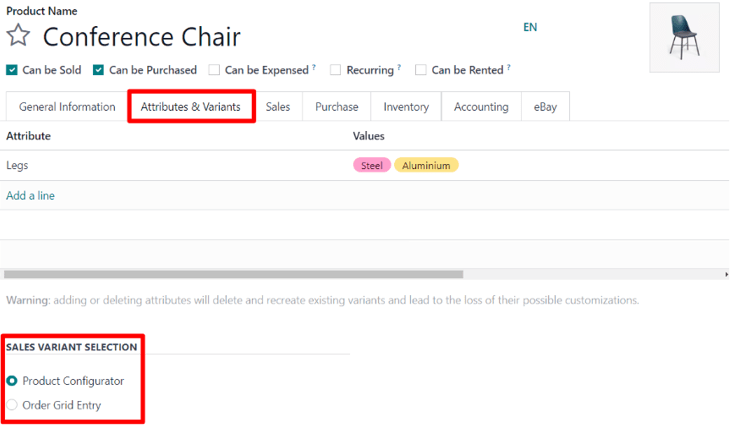
These options determine which method is used when adding product variants to quotations or sales orders.
The Product Configurator provides a pop-up window that neatly displays all the available product variants for that particular product when it's added to a quotation. However, only one variant can be selected/added at a time.
The Order Grid Entry provides the same information as the Product Configurator in a table layout, allowing the user to select larger numbers of unique product variants, and add them to a quotation/sales order, in a single view.
Product configurator
The product configurator feature appears as a Configure pop-up window, as soon as a product with (at least two) variants is added to a quotation or sales order, but only if the Product Configurator option is selected on its product form.
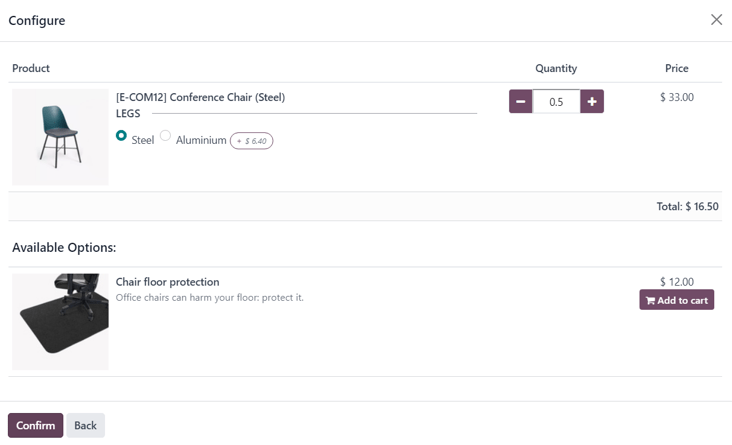
The Product Configurator option lets salespeople choose exactly which product variant to add to the quotation or sales order using a format similar to online shopping.
Order grid entry
The order grid entry feature appears as a Choose Product Variants pop-up window, as soon as a product with (at least two) variants is added to a quotation or sales order, but only if the Order Grid Entry option is selected on its product form.
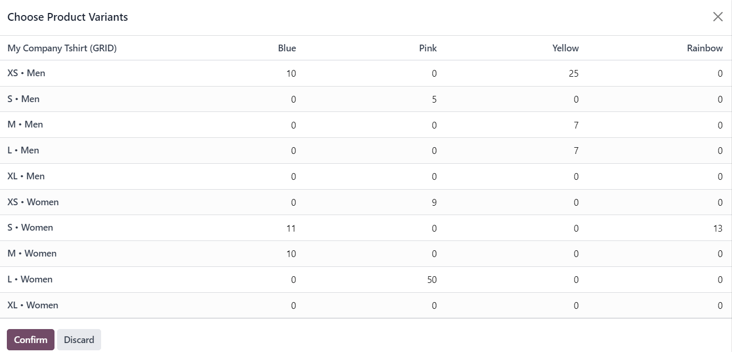
The Choose Product Variants pop-up window features all the variant options for that particular product. From this pop-up window, the salesperson can designate how many of each variant they'd like to add to the quotation/sales order at once.
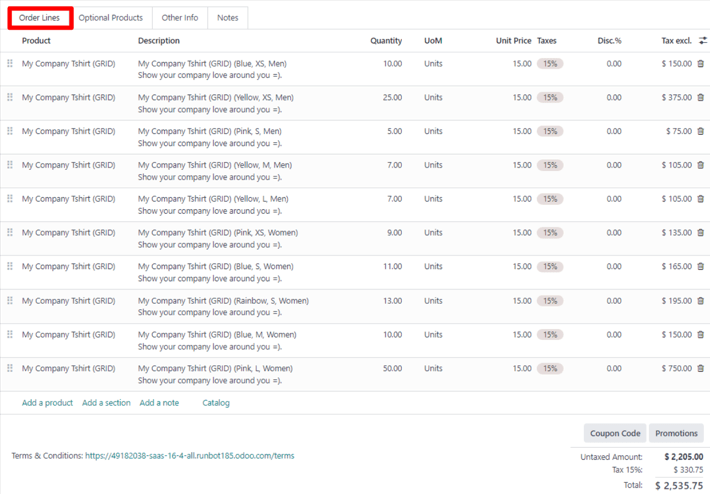
When all the desired quantities and variants have been selected, the salesperson simply clicks Confirm, and those orders are instantly added to the quotation/sales order in the Order Lines tab.
See also