
Prepare a quotation and confirm a sales order
Use this guide to record a commercial offer, send it to the customer, and confirm the sale after acceptance. A confirmed quotation becomes a sales order.
Before you start
-
You need access to Sales and permission to create quotations.
-
Check the active company, products, prices, quantities, and agreed payment terms.
-
The customer must be registered. If needed, follow Register a customer in Brazil.
Step by step
1. Open a new quotation
Open Sales. In the quotations list, click New. If you are viewing a chart or calendar, switch to list or Kanban view to find the creation button.
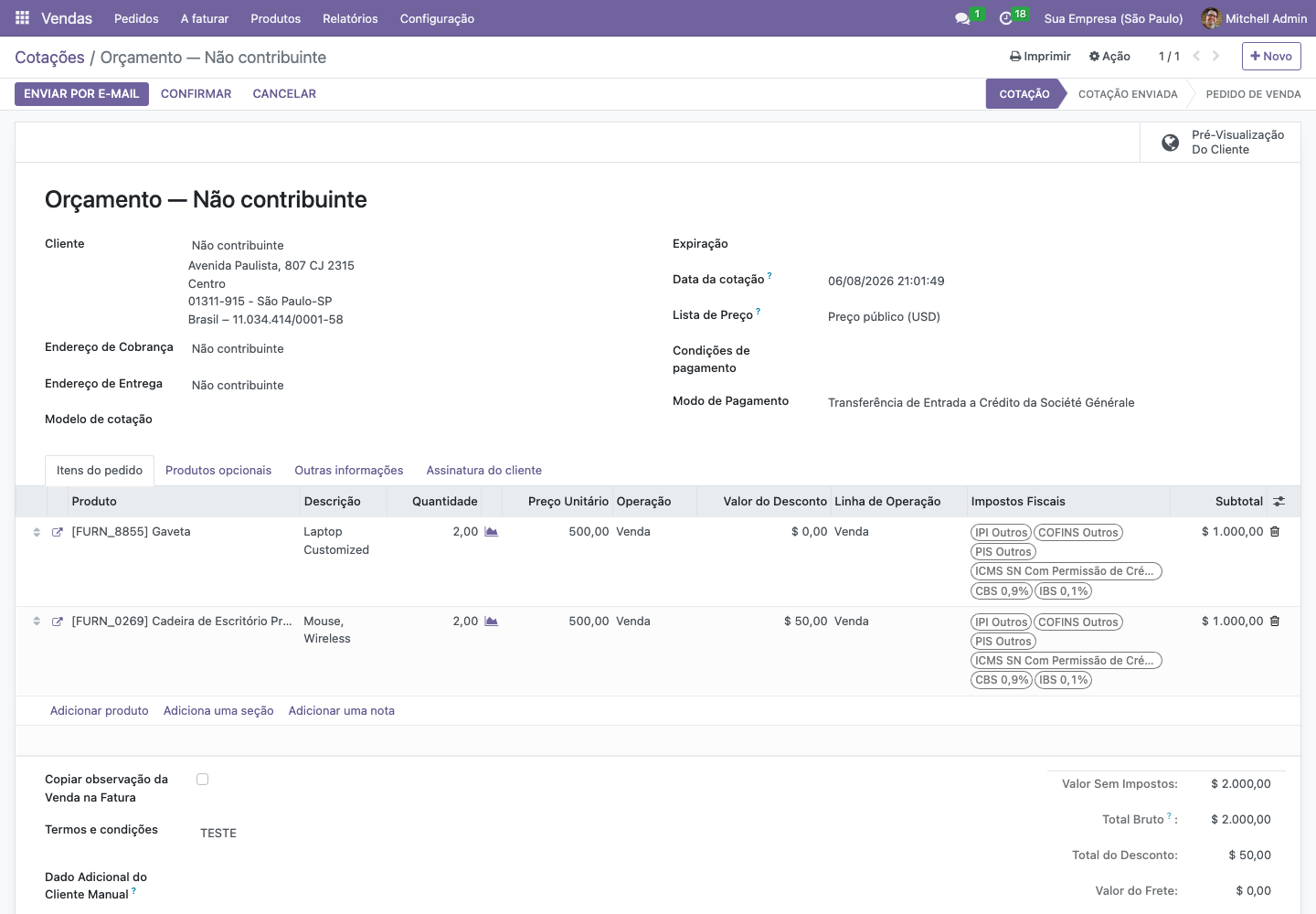
Select the Customer. Check the billing and delivery addresses supplied by the customer record. Confirm the expiration date, pricelist, and payment terms when those fields are available.
2. Add the items and review the amounts
In Order Lines, click Add a product, select the product, and enter the quantity. Repeat for the other items. Check the description, unit of measure, unit price, and applicable discounts.
For example, 10 units at R$100.00 produce a subtotal of R$1,000.00 before discounts, shipping, and any tax effects. Use a simple example to check quantities and unit prices.
Review the calculated taxes and total. If the fiscal calculation is unexpected, review the customer, product, and operation with your fiscal team before sending the offer.
3. Review and send the offer
Click Customer Preview to check the version the customer will see. Review the items, addresses, amounts, expiration date, and commercial conditions.
Return to the quotation and click Send by Email. Check the recipients, subject, message, and attached quotation. Click Send when the offer is ready.
Check the communication history and the email delivery status available in your environment. Sending an offer and confirming the sale are separate steps.
4. Confirm the accepted quotation
After the customer's acceptance, reopen the correct quotation and check whether the items and conditions still match the agreement. Click Confirm. The document changes to Sales Order.
Expected result
You have a sales order with the agreed customer, items, prices, and commercial conditions. Delivery and invoicing are subsequent steps according to your configuration.
If something goes wrong
-
Missing quotation: check the active company, search text, and the My Quotations filter.
-
Product missing from the list: ask the responsible team to check its sales availability and your access rights.
-
Email not received: check the recipient and message status before sending another copy.