
One-step receipt and delivery
By default, incoming shipments are configured to be received directly into stock, and outgoing shipments are configured to be delivered directly from stock to the customer; the default setting for warehouses in Odoo is one step receipts and deliveries.
In the following example, one step will be used for both receipts and deliveries.
Configure the warehouse
If another receiving or shipping configuration is set on the warehouse, they can easily be set back to the one step setting.
Begin by navigating to Inventory -> Configuration -> Warehouses, and click on the desired warehouse to edit. Next, on the Warehouse Configuration tab, under the Shipments section, select Receive goods directly (1 step) for Incoming Shipments and/or Deliver goods directly (1 step) for Outgoing Shipments.
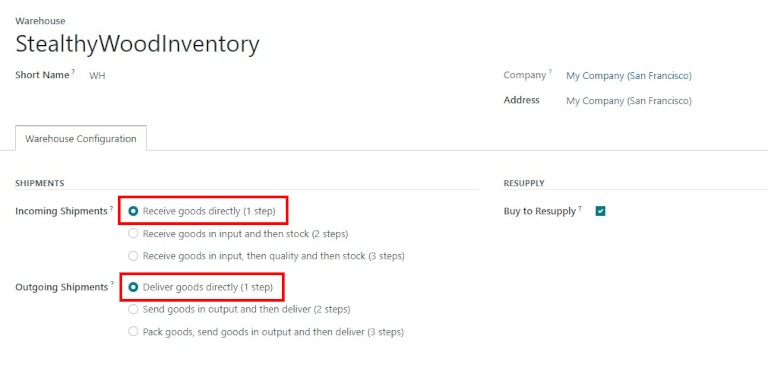
Receive goods directly (1 step)
Create a purchase order
On the main Purchase application dashboard, start by making a new quote by clicking New. Then, select (or create) a Vendor from the drop-down field, add a storable Product to the order lines, and click Confirm Order to finalize the quote as a new purchase order.
A Receipt smart button will appear in the top-right corner of the PO form — click it to reveal the associated receipt for the purchase order.
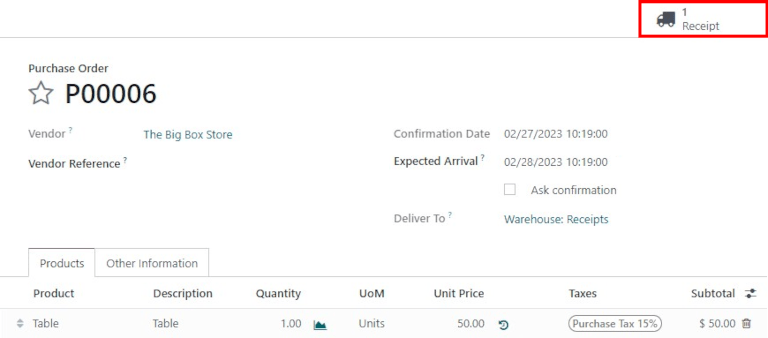
Process the receipt
When viewing the receipt (associated with the purchase order above), click Validate to then complete the receipt.
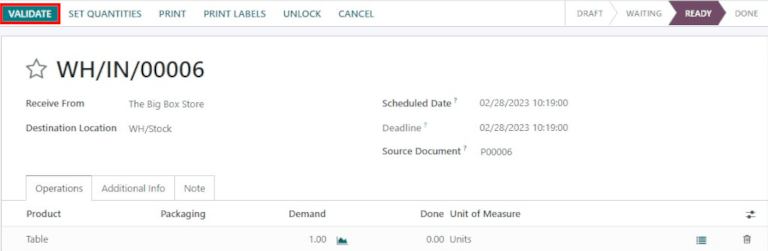
Once the receipt is validated, the product leaves the Supplier Location and enters the WH/Stock Location. Once it arrives here, it will be available for manufacturing, sales, etc. Then, the status of the document will change to Done, thus completing the reception process in one step.
Deliver goods directly (1 step)
Create a sales order
Start my navigating to the main Sales app dashboard, and make a new quote by clicking New. Then select (or create) a Customer from the drop-down field, add a storable Product that is in stock to the order lines, and click Confirm to finalize the quotation as a sales order.
A Receipt smart button will appear in the top-right corner of the PO form — click it to reveal the associated receipt for the purchase order.
A Delivery smart button will appear in the top-right corner of the SO form — click it to reveal the associated delivery order for the sales order.
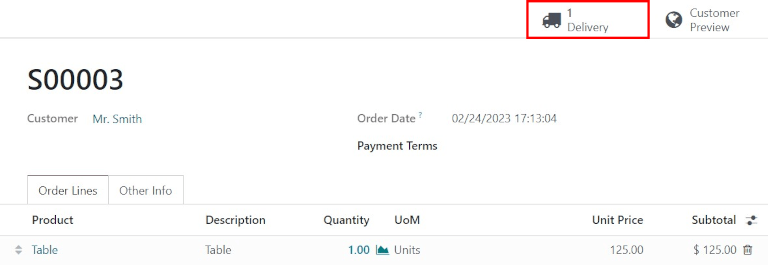
Process the delivery
When viewing the delivery order (associated with the sales order above), click Validate to then complete the delivery.
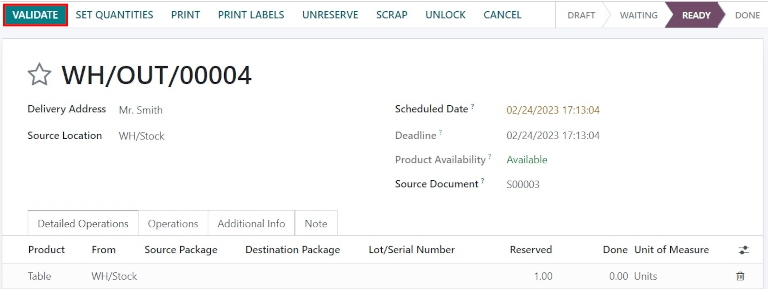
Once the picking order is validated, the product leaves the WH/Stock location and moves to the Partners/Customers location. Then, the status of the document will change to Done, thus completing delivery in one step.