Sell stock from multiple warehouses using virtual locations
While keeping stock and selling inventory from one warehouse might work for smaller companies, bigger companies might need to keep stock in, or sell from, multiple warehouses in multiple locations.
Sometimes products included in a single sales order might take stock from two (or more) warehouses; in Odoo, pulling products from multiple warehouses to satisfy sales demands can be done using virtual locations.
Create virtual parent location
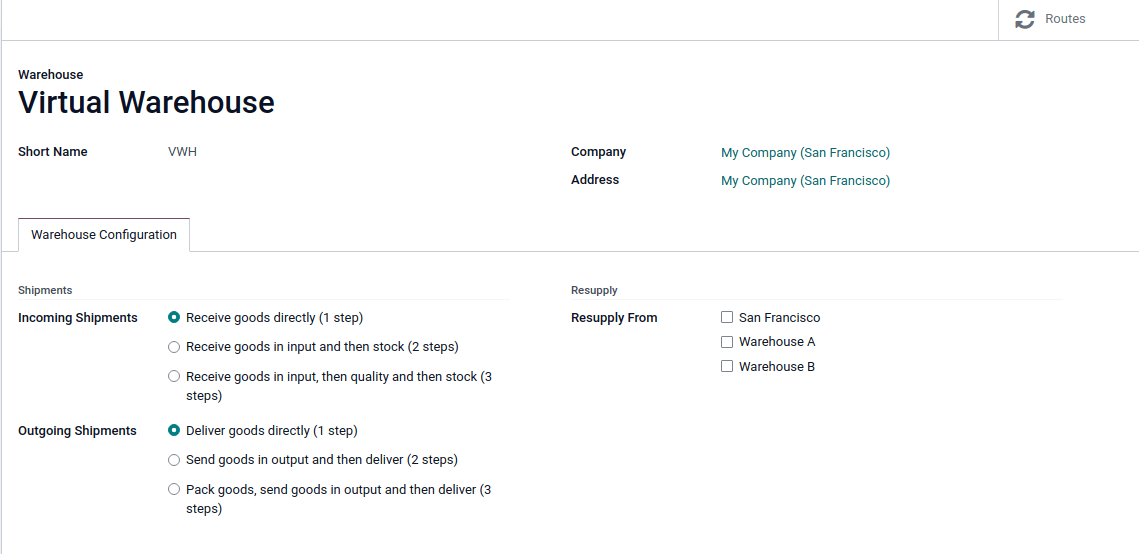
Before creating any virtual stock locations, create a new warehouse that acts as a virtual warehouse — the parent location of other physical warehouses.
Why a "virtual" warehouse?
Virtual warehouses are great for companies with multiple physical warehouses. This is because a situation might arise when one warehouse runs out of stock of a particular product, but another warehouse still has stock on-hand. In this case, stock from these two (or more) warehouses could be used to fulfill a single sales order.
The "virtual" warehouse acts as a single aggregator of all the inventory stored in a company's physical warehouses, and is used (for traceability purposes) to create a hierarchy of locations in Odoo.
To create a new warehouse, go to Inventory app -> Configuration -> Warehouses, and click Create. From here, the warehouse Name and Short Name can be changed, and other warehouse details can be changed under the Warehouse Configuration tab.
Lastly, click Save to finish creating a regular warehouse. Continue following the steps below to finish configuring the virtual parent warehouse.
Create child warehouses
Create at least two child warehouses to link to the virtual warehouse.
To do that, navigate to Inventory app -> Configuration -> Warehouses, click Create, and follow the preceding instructions to configure the physical stock locations.
Link child warehouses to virtual stock
To set physical warehouses as child locations of the virtual location configured in the previous step, navigate to Inventory app -> Configuration -> Locations.
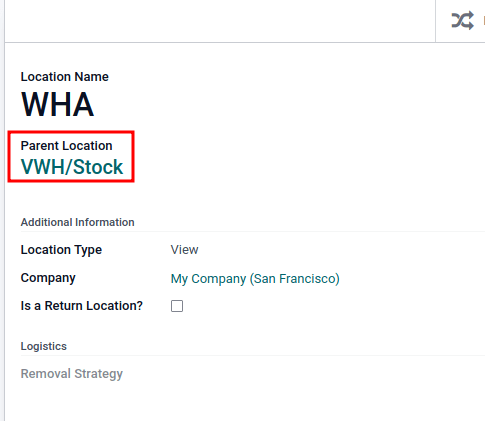
Remove any filters from the search bar. Then, click the physical warehouse Location that was previously created to be a child location (e.g. WHA), and click Edit.
Change the Parent Location field from Physical Locations to the virtual warehouse's stock location (e.g. VWH/Stock) from the drop-down menu, and click Save.
Repeat the preceding steps to configure two or more child warehouses.
Once complete, the virtual, parent warehouse (e.g. VWH/Stock) fulfills orders using stock from child warehouses (e.g. WHA and WHB), if there is insufficient stock in any one location.
Set virtual stock location as 'view'
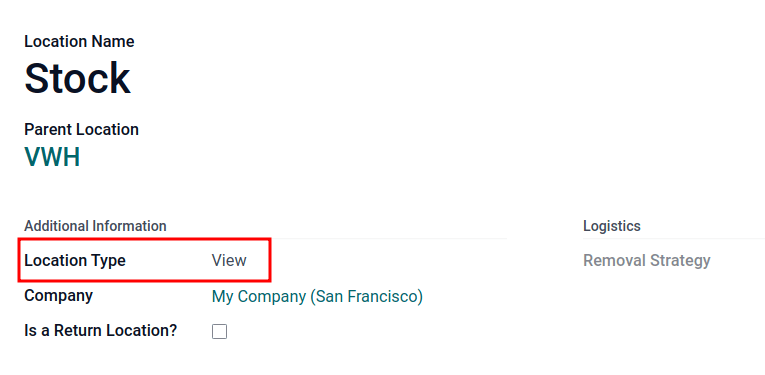
Set the virtual stock location's Location Type to View, as it is a non-existent location used to group various physical warehouses together.
To do that, navigate to Inventory app -> Configuration -> Locations.
Click the virtual warehouse's stock location (e.g. VWH/Stock) that was previously created, from the Locations list.
On the location form, under the Additional Information heading, set the Location Type to View. Save the changes.
Example: sell products from a virtual warehouse
To sell products from multiple warehouses using a virtual parent location, the database must have at least two warehouses configured — with at least one product, with quantity on-hand in each warehouse, respectively.
Create a quotation for the product by navigating to the Sales app and clicking Create. On the quote, add a Customer, and click Add a product to add the two products stored in the two warehouses.
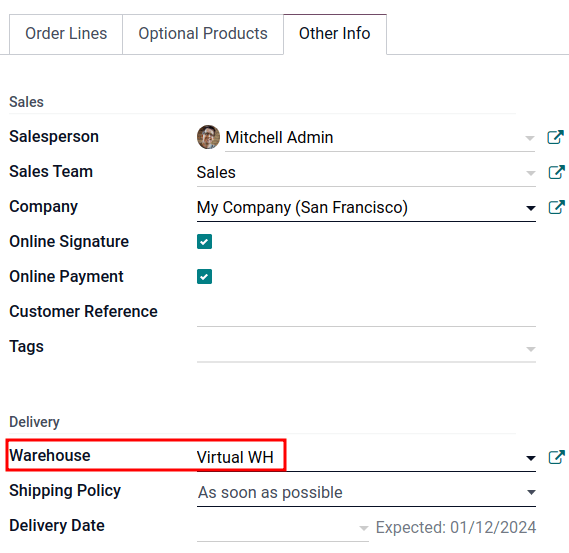
Then, click the Other Info tab on the sales order form. Under the Delivery section, change the Warehouse field value to the virtual warehouse that was previously created. Next, Confirm the sales order.
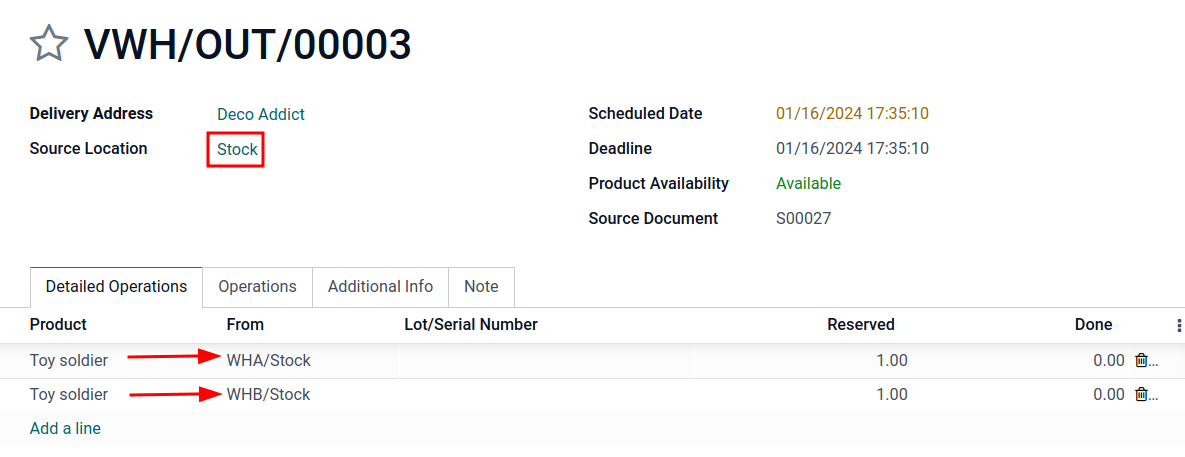
Then, click the Delivery smart button. From the warehouse delivery form, confirm that the Source Location value matches the Warehouse field value from the sales order. Both should list the virtual warehouse location.
Finally, on the warehouse delivery form, under the Detailed Operations tab, confirm that the Locations in the From column for each product match the child locations that are tied to the virtual parent location.