
Impostos
Fluxo padrão do Odoo. Consulte também o procedimento KMEE para os módulos brasileiros.
There are numerous types of taxes, and their application varies greatly, depending mostly on your company's localization. To make sure they are recorded with accuracy, Odoo's tax engine supports all kinds of uses and computations.
Impostos padrão
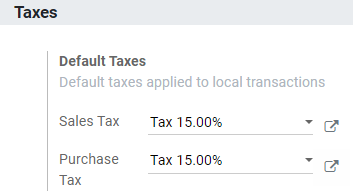
Default Taxes define which taxes are automatically selected when there is no other indication about which tax to use. For example, Odoo prefills the Taxes field with the Default Taxes when you create a new product or add a new line on an invoice.

To change your Default Taxes, go to Accounting -> Configuration -> Settings -> Taxes -> Default Taxes, select the appropriate taxes for your default Sales Tax and Purchase Tax, and click on Save.
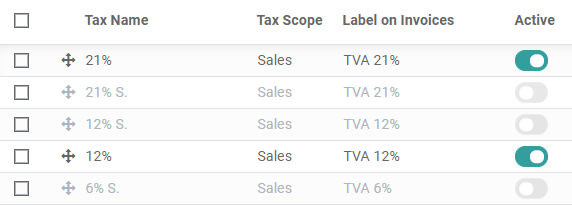
Activate Sales Taxes from the List view
As part of your fiscal localization package, most of your country's sales taxes are already preconfigured on your database. However, only a few of them are activated by default, so that you can activate only the ones relevant for your business.
To activate Sale Taxes, go to Accounting -> Configuration -> Taxes and use the Activate toggle button to activate or deactivate a tax.
Configuração
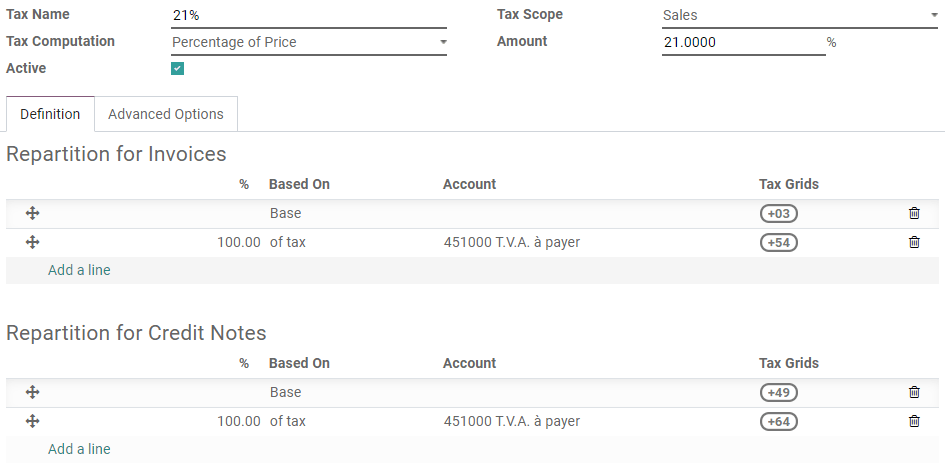
To edit or create a Tax, go to Accounting -> Configuration -> Taxes and open a tax or click on Create.
Opções Básicas
Nome da taxa
The Tax Name as you want to display it for backend users. This is the label you see while editing Sales Orders, Invoices, Products, etc.
Cálculo de Impostos
-
Group of Taxes
The tax is a combination of multiple sub-taxes. You can add as many taxes you want, in the order you want them to be applied.
-
Fixed
The tax has a fixed amount in the default currency. The amount remains the same, regardless of the Sales Price.
For example, a product has a Sales Price of $1000, and we apply a $10 fixed tax. We then have:
Product's Sales Price Price without tax Imposto Total 1.000 1.000 10 1,010.00 -
Porcentagem do preço
The Sales Price is the taxable basis: the tax's amount is computed by multiplying the Sales Price by the tax's percentage.
For example, a product has a Sales Price of $1000, and we apply a 10% of Price tax. We then have:
Product's Sales Price Price without tax Imposto Total 1.000 1.000 100 1,100.00 -
Porcentagem do preço com impostos
The Total is the taxable basis: the tax's amount is a percentage of the Total.
For example, a product has a Sales Price of $1000, and we apply a 10% of Price Tax Included tax. We then have:
Product's Sales Price Price without tax Imposto Total 1.000 1.000 111.11 1,111.11
Ativo
Only Active taxes can be added to new documents.
Escopo de Imposto
The Tax Scope determines the tax's application, which also restricts where it is displayed.
- Sales: Customer Invoices, Product's Customer Taxes, etc.
- Purchase: Vendor Bills, Product's Vendor Taxes, etc.
- None
Definition tab
Allocate with precision the amount of the taxable basis or percentages of the computed tax to multiple accounts and Tax Grids.
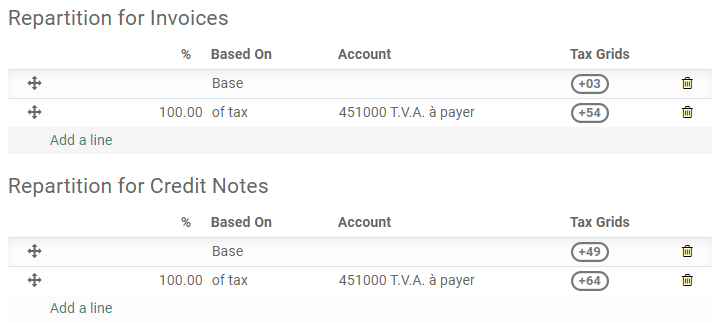
- Baseado Em:
- Base: the price on the invoice line
- % of tax: a percentage of the computed tax.
- Account: if defined, an additional Journal Item is recorded.
- Tax Grids: used to generate Tax Reports automatically, according to your country's regulations.
Guia Opções Avançadas
Etiqueta em Faturas
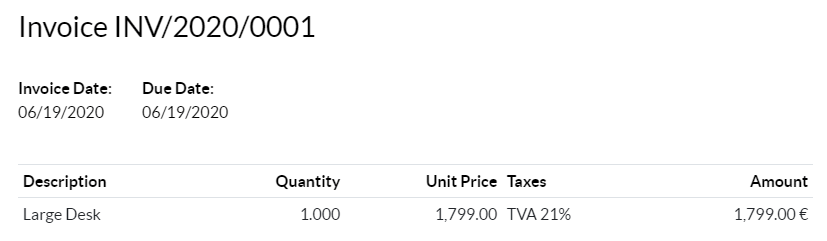
The label of the tax, as displayed on each invoice line in the Taxes column. This is the label visible to front end users, on exported invoices, on their Customer Portals, etc.
Grupo de Imposto
Select to which Tax Group the tax belongs. The Tax Group name is the label displayed above the Total line on exported invoices, and the Customer Portals.
Tax groups include different iterations of the same tax. This can be useful when you must record differently the same tax according to Fiscal Positions.
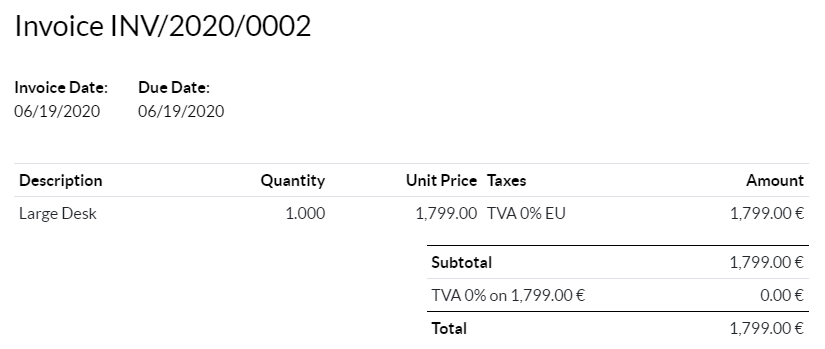
In the example above, we see a 0% tax for Intra-Community customers in Europe. It records amounts on specific accounts and with specific tax grids. Still, to the customer, it is a 0% tax. That's why the Label on the Invoice indicates 0% EU, and the Tax Group name, above the Total line, indicates 0%.
Incluir em Custos Analíticos
With this option activated, the tax's amount is assigned to the same Analytic Account as the invoice line.
Incluído no preço
With this option activated, the total (including the tax) equals the Sales Price.
Total = Sales Price = Computed Tax-Excluded price + Tax
For example, a product has a Sales Price of $1000, and we apply a 10% of Price tax, which is included in the price. We then have:
| Product's Sales Price | Price without tax | Imposto | Total |
|---|---|---|---|
| 1.000 | 900.10 | 90.9 | 1,000.00 |
Afeta a Base de Impostos Futuros
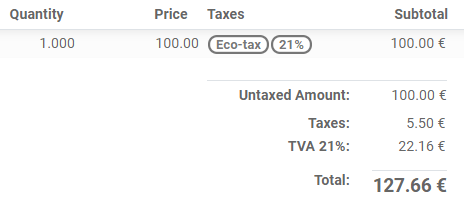
With this option, the total tax-included becomes the taxable basis for the other taxes applied to the same product.
You can configure a new Group of Taxes to include this tax, or add it directly to a product line.
Veja também
- Fiscal positions (tax and account mapping)
- B2B (tax excluded) and B2C (tax included) pricing
- TaxCloud integration (decommissioning TaxCloud integration in Odoo 17+)
- Tax return (VAT declaration)